


Removing a chemical from the inventory
The following walkthrough describes how to remove a chemical from your inventory.
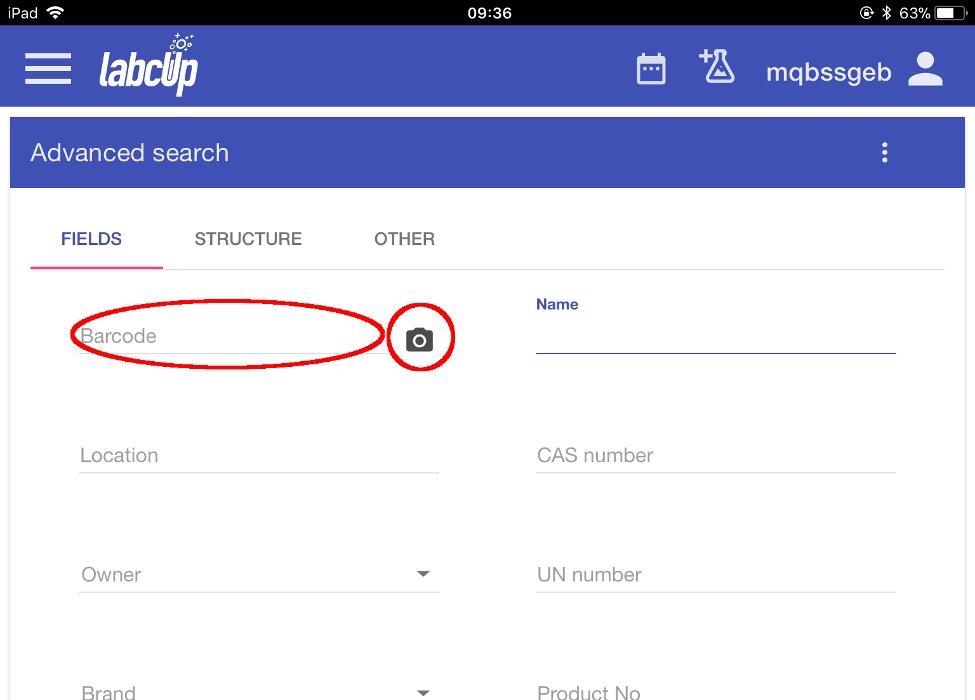
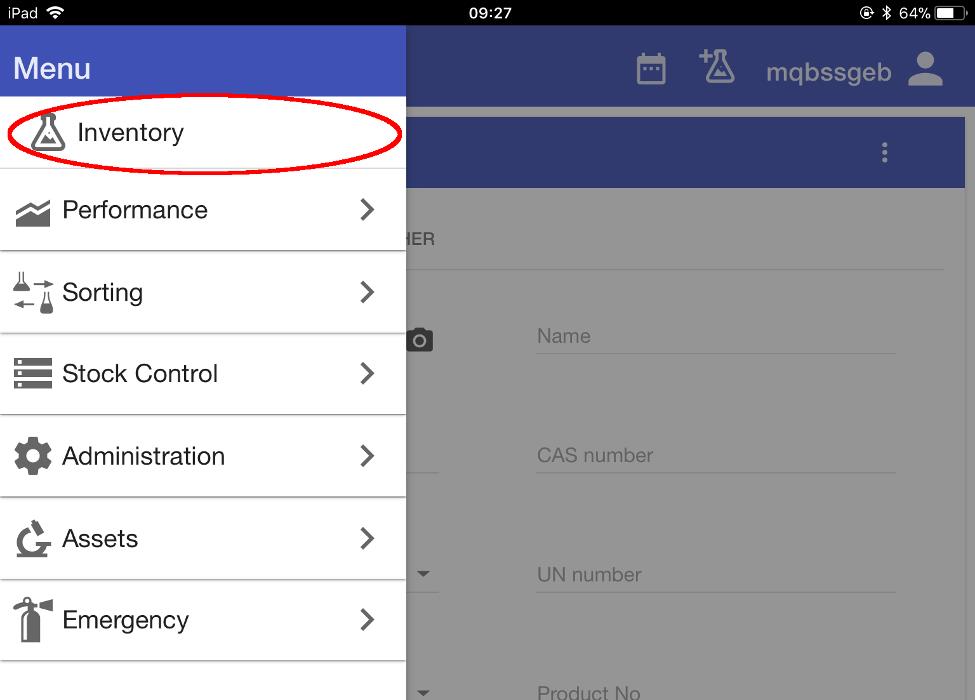
Using the menu option at the top-left of the screen, select the ‘Inventory’ menu.
The ‘Advanced search’ screen opens.
Select either ‘Barcode’ to enter a chemical’s barcode number manually or the camera icon to scan a barcode.
Note: This is the same process as barcode scanning when entering a new chemical into the database
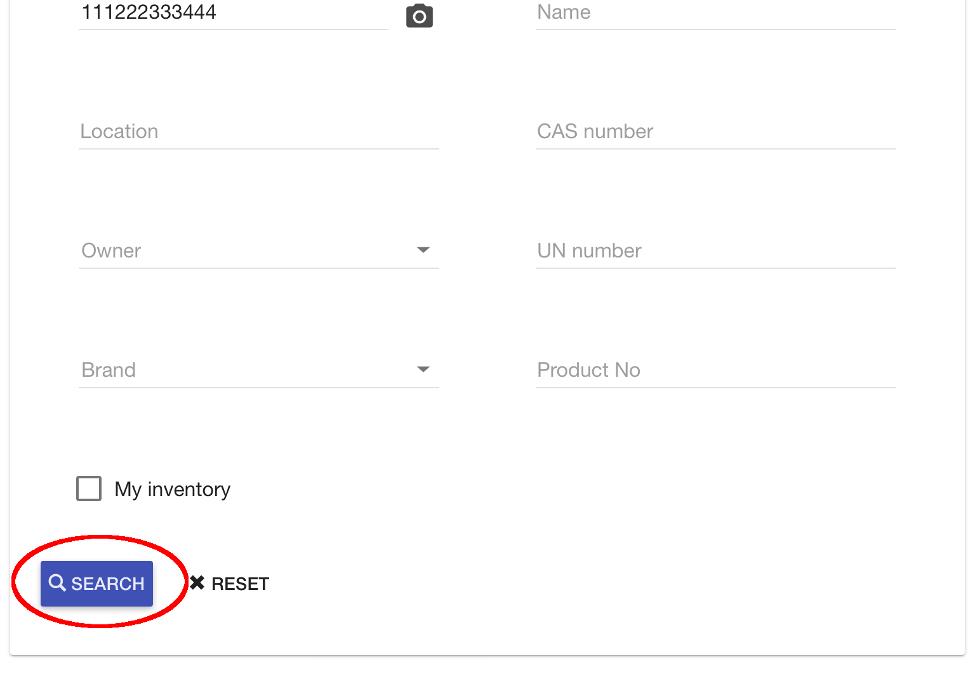
Click ‘Search’
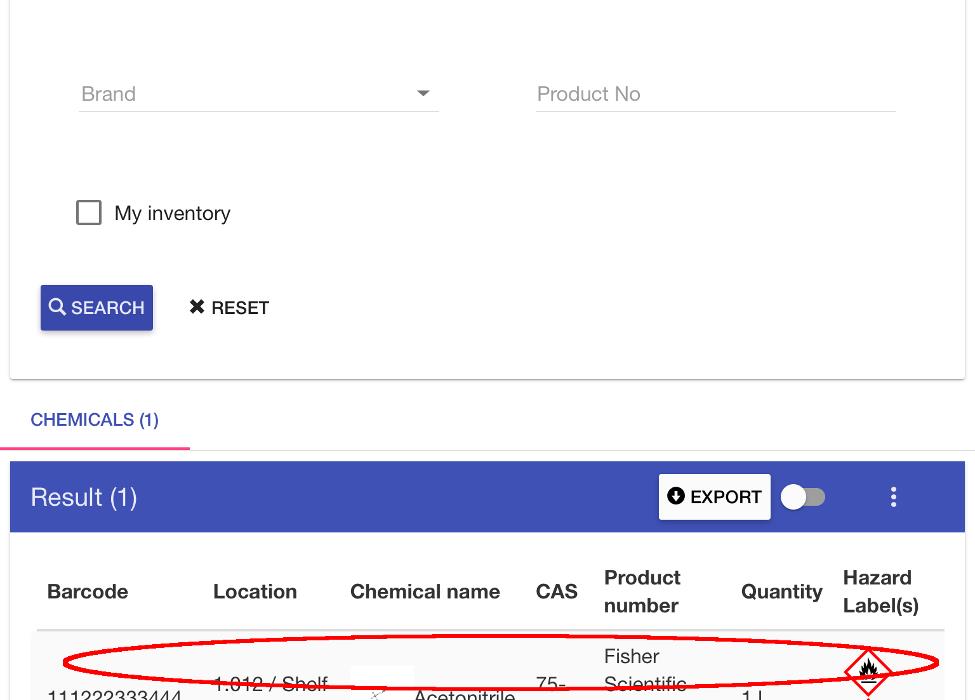
At the bottom of the screen, the chemical with the specified barcode is listed.
Scroll down and select the entry on the list.
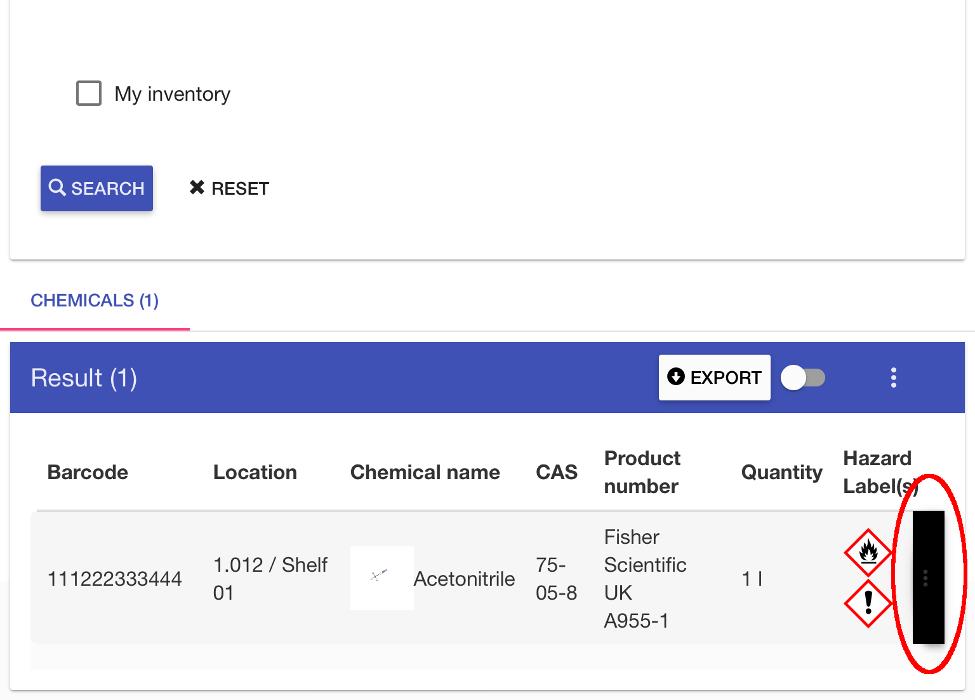
Select the three dots that appear at the right-hand end of the entry.
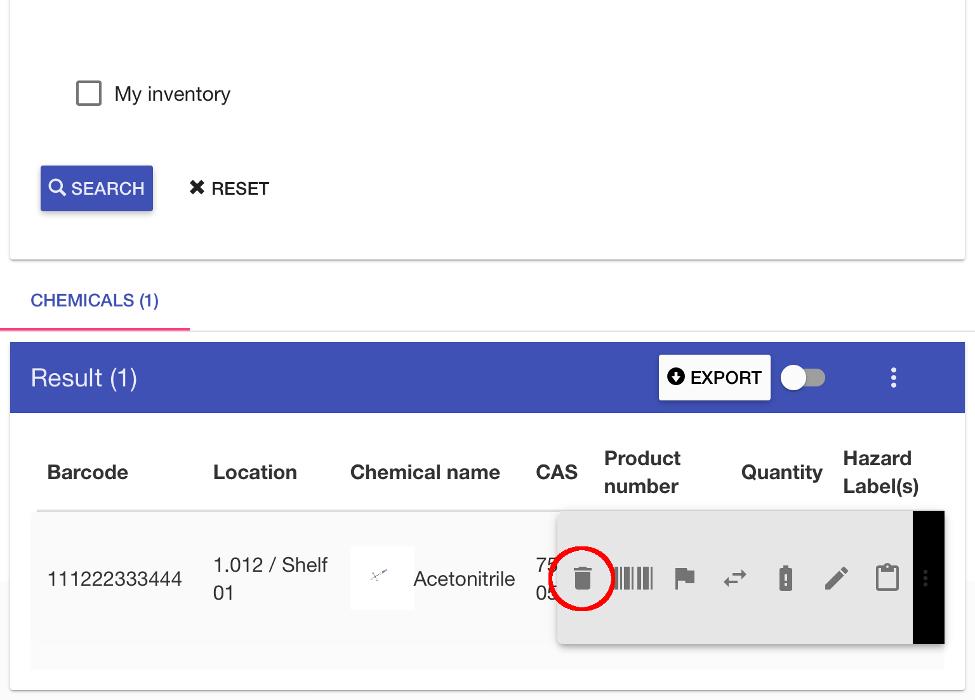
From the menu bar that appears, select the dustbin icon.

In the window that opens, check the details are correct and click ‘REMOVE’.
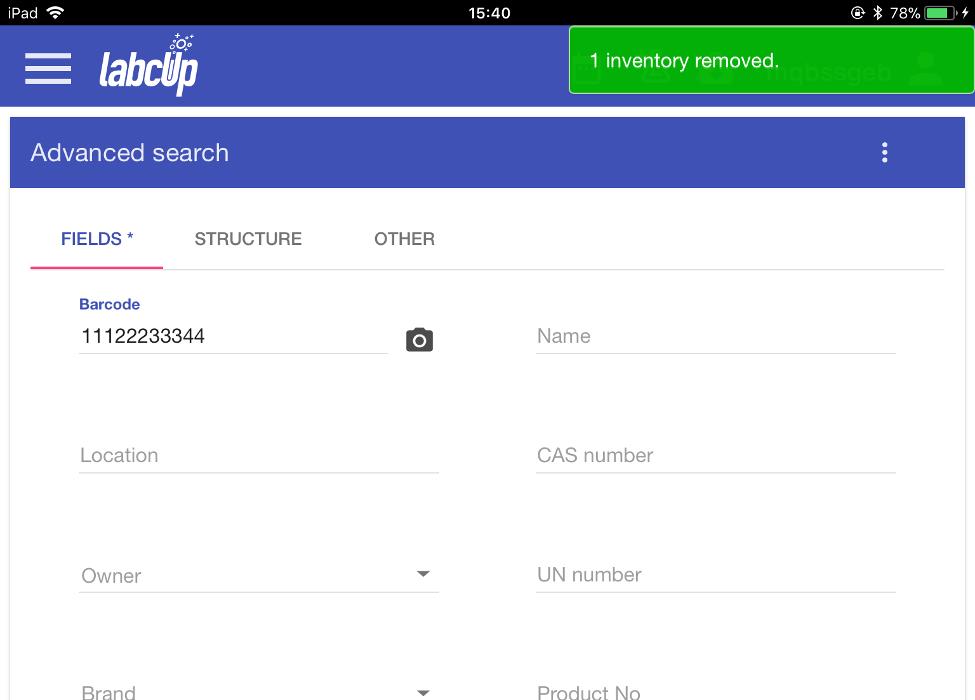
LabCup returns to the ‘Advanced search’ screen with the message ‘1 inventory removed’ at the top-right corner.