


Browsing the chemical inventory
The following walkthrough describes how to browse the chemical inventory within the LabCup using the search function.
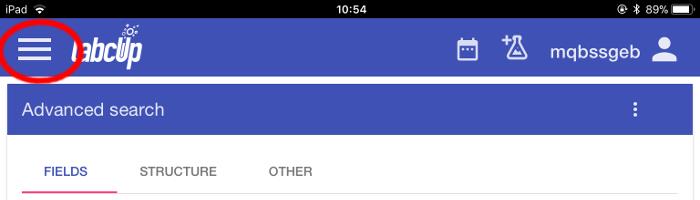
Open the LabCup app
Log in using your University username and password
Select the menu button at the top left of the screen.

Using the menu option at the top-left of the screen, navigate to ‘Inventory’.
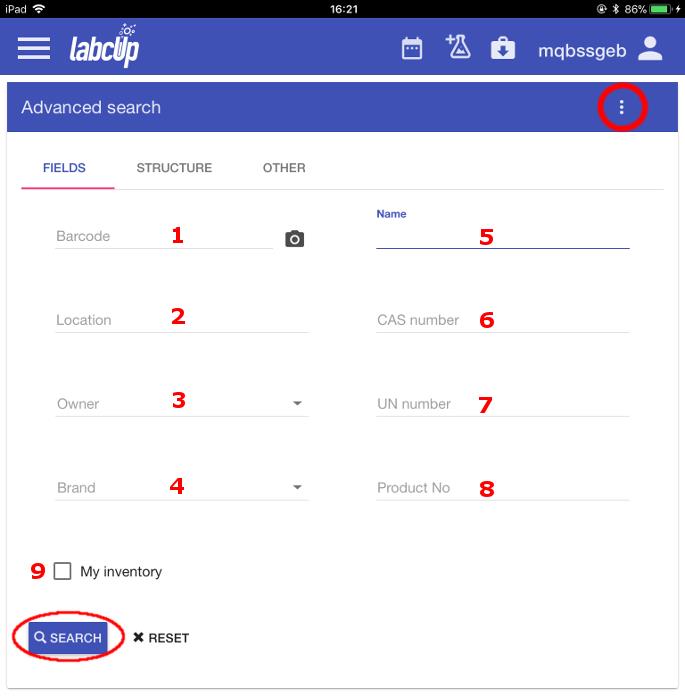
The ‘Advanced search’ screen opens.
The various fields present by default are:
1. Barcode: enter manually or scan from the bottle
2. Location: storage location available to your group
3. Owner: specify a PI, School, Division or TOM domain
4. Brand: manufacturer of chemical
5. Name: search for a name or pseudonym of chemical
6. CAS number: for chemical disposal purposes
7. UN number: for transport
8. Product number
You can add or remove fields using the three dots at the top right.
You can also specify chemicals in your own name by ticking 9. ‘My inventory’ checkbox.
Enter one or more fields and select ‘Search’.

At the bottom of the screen, the specific chemicals which match your search are listed.
Scroll down to browse the complete list.
If you select an item, it will bring up the full details for that chemical.