


Quickly adding chemicals to the inventory
The following walkthrough describes how to quickly add batches of chemicals to your LabCup database.

Open the LabCup app
Log in using your University username and password
Select the menu button at the top left of the screen.
Note: Your initial screen will vary from user to user, but the menu button should always be there.

From the menu, select ‘Stock Control’.

From the Stock Control submenu, select ‘Quick add Chemicals’.

This takes you to the Add multiple chemicals screen.
Select ‘ADD NEW’.

From the dropdown menus select the correct
- Owner group: The PI Lab Group or Shared Group
- Responsible Person: This will normally be the PI in charge
- Laboratory: The Laboratory the chemical will be stored

Note: using sub locations is optional.
Scroll down the screen and select the Location and SubLocation (if required) from the dropdown menus.
Select ‘NEXT’.

Apply one of the barcode stickers supplied to your group to the chemical’s container.
Select the camera icon in the barcode section to scan your first item’s barcode.

The screen changes to the view from the tablet’s camera. The red line overlaid on the view is where you want to line the barcode up.

Line the barcode up and the software will automatically read it and return to the Add or Edit Inventory screen.

You can see that the barcode has been translated into its number.
Note: if a barcode should fail to scan for any reason, the number can always be entered manually in the box provided.
Select the ‘CAPTURE FRONT LABEL’ button.
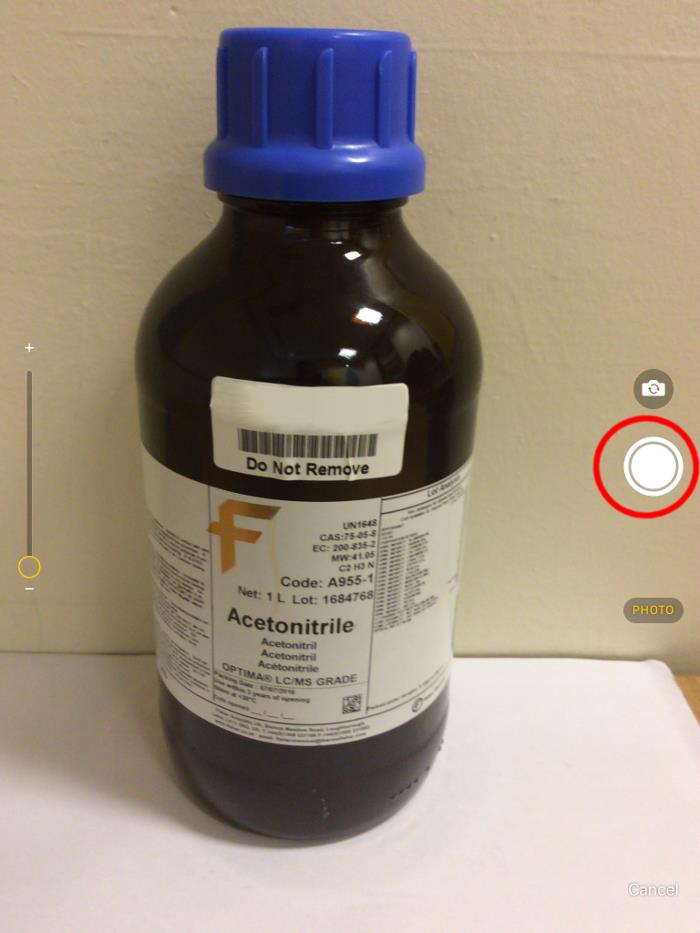
This takes you to the tablet’s camera view again, this time with no overlay.
The priority is to make sure the software has brought the label into clear focus.
Take a photo using the highlighted icon.
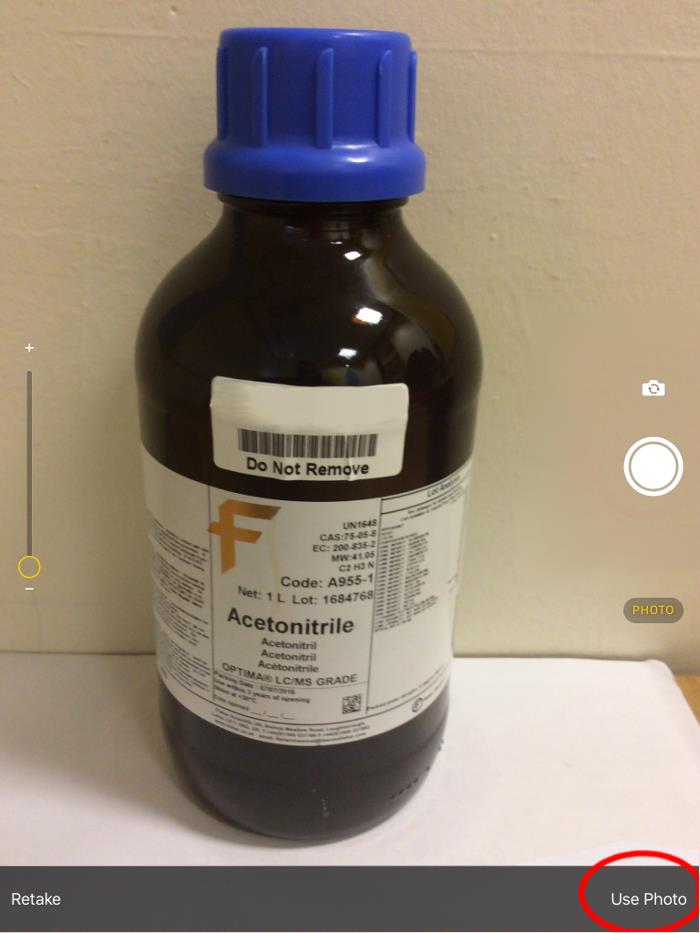
You then have an opportunity to review the photo, and re-take it if it looks blurred. If you are happy with the photo, select ‘Use Photo’.
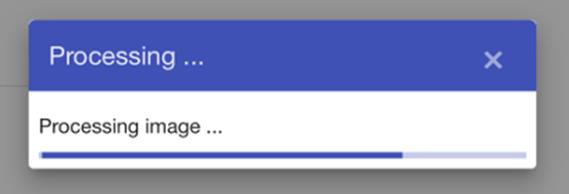
A Processing… message appears.
As well as storing a visual record of the bottle, the software will now attempt to read the label and match that data with online records.
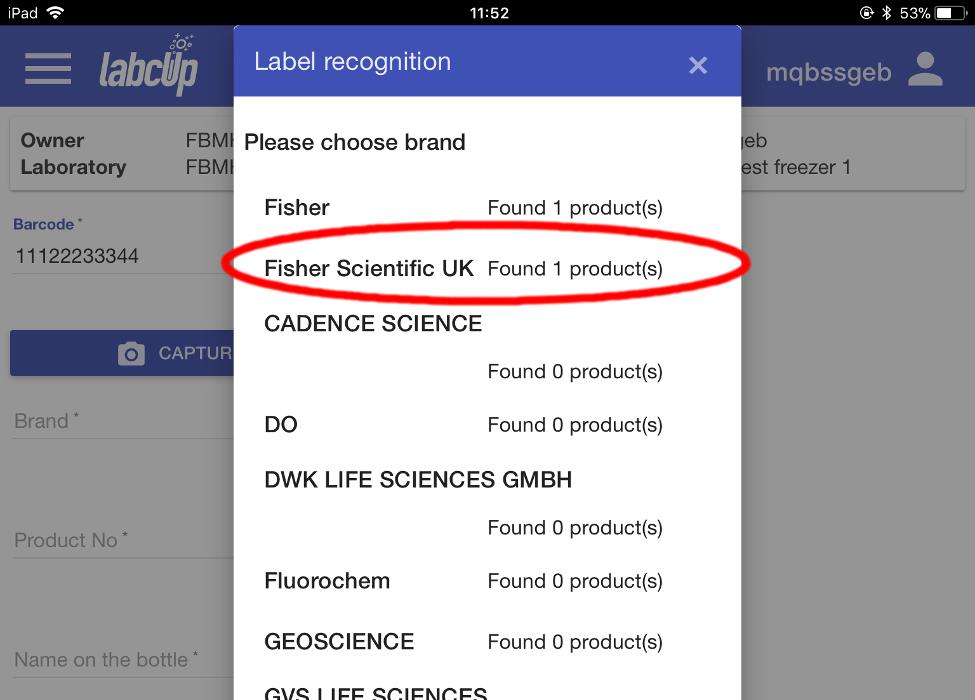
You are then presented with a list of possible manufacturers based on the look of the label. For each manufacturer, the software will tell you if there is a catalogued product which matches your bottle.
In this example we see that Fisher Scientific UK has been correctly identified, and 1 product has been found on their database that matches our bottle.
Select the manufacturer that matches your bottle. If nothing correctly matches, select ‘NOT LISTED’ at the bottom of the menu.
Note: some Sigma-Aldrich chemicals will appear as Aldrich products or Sigma products.
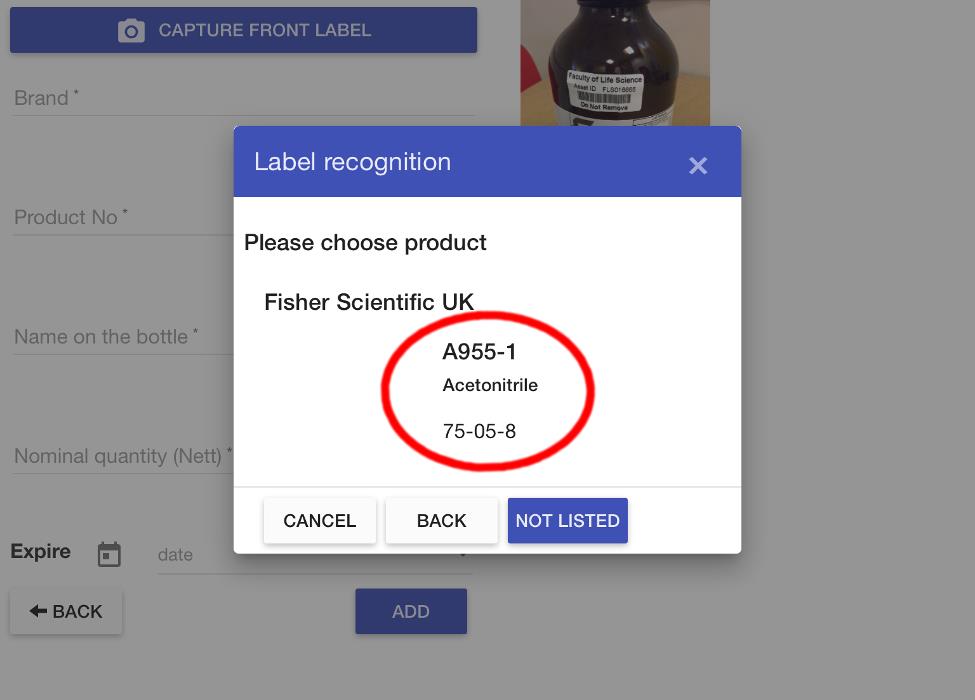
Check that the details of the suggested match tally with your bottle, if they do, select the chemical name.
If they don’t, either select ‘BACK’ for the previous manufacturer selection screen, or ‘NOT LISTED’ to enter the details manually.

The software then asks you to check other data that it has extracted from the label image, suggesting different fields that the data might match. In this example, only three of four suggestions correctly match our label data, so we select each one.
Select ‘DONE’.
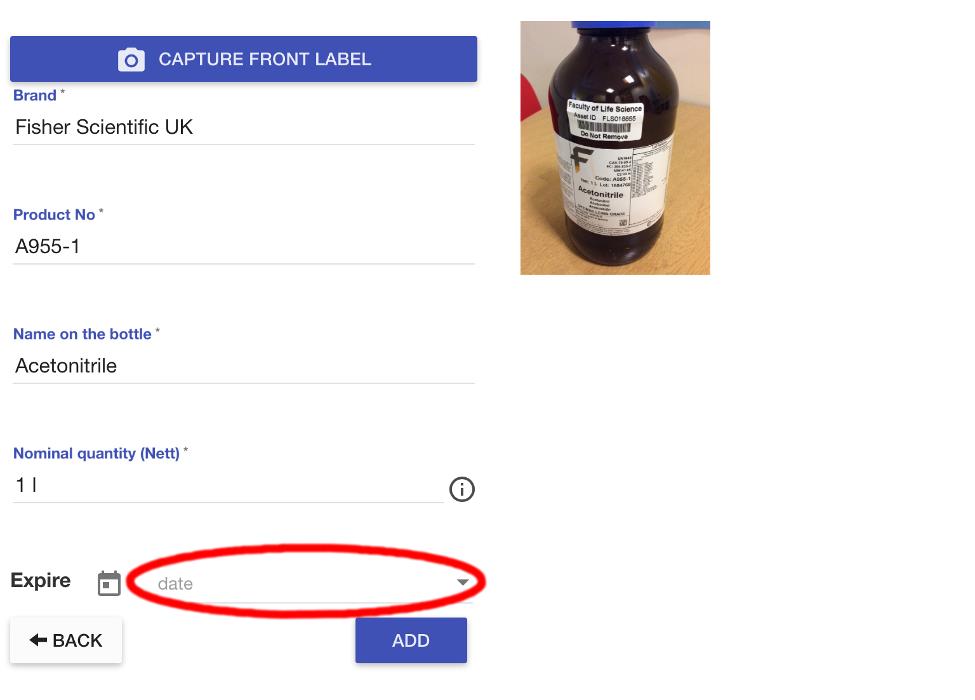
On the next screen, we can edit the quantity of the chemical (it will automatically recognise SI units such as L, ml, g, kg). In our example this has already been filled in as it was part of the information harvested from the label image.
In the Expire section, select the ‘date’ dropdown menu.
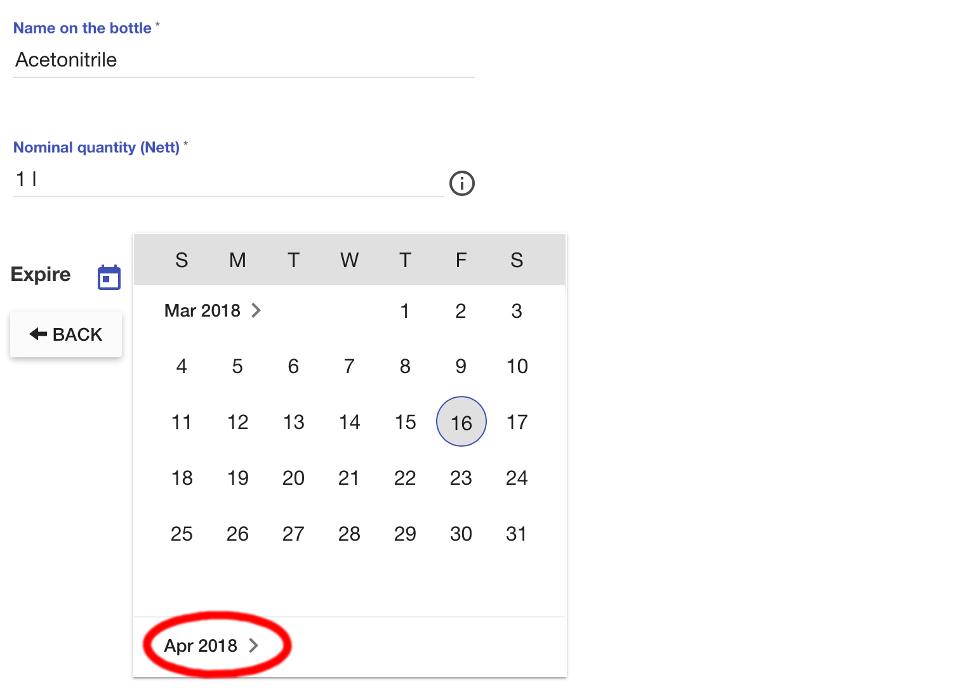
This brings up a calendar for the current month. Select the month listed below this to bring up dates further in the future.
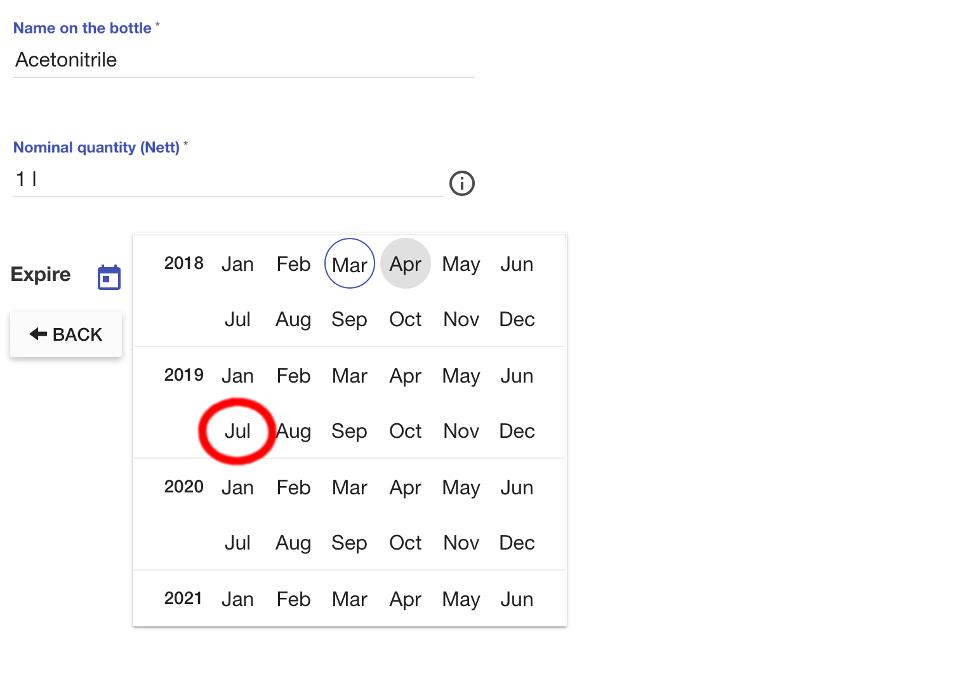
In our example, the expiration date is 3 years after the bottling date, which, according to the label, was 7/7/2016. We therefore select ‘Jul’ in the ‘2019’ section.
Note: If the expiration date was further in the future than the dates shown, this menu can be scrolled down as far as required.

Next, select the correct day in the calendar.

The dropdown closes, and the expiration date is displayed.
Select ‘ADD’ to add the item to the database and close this screen.
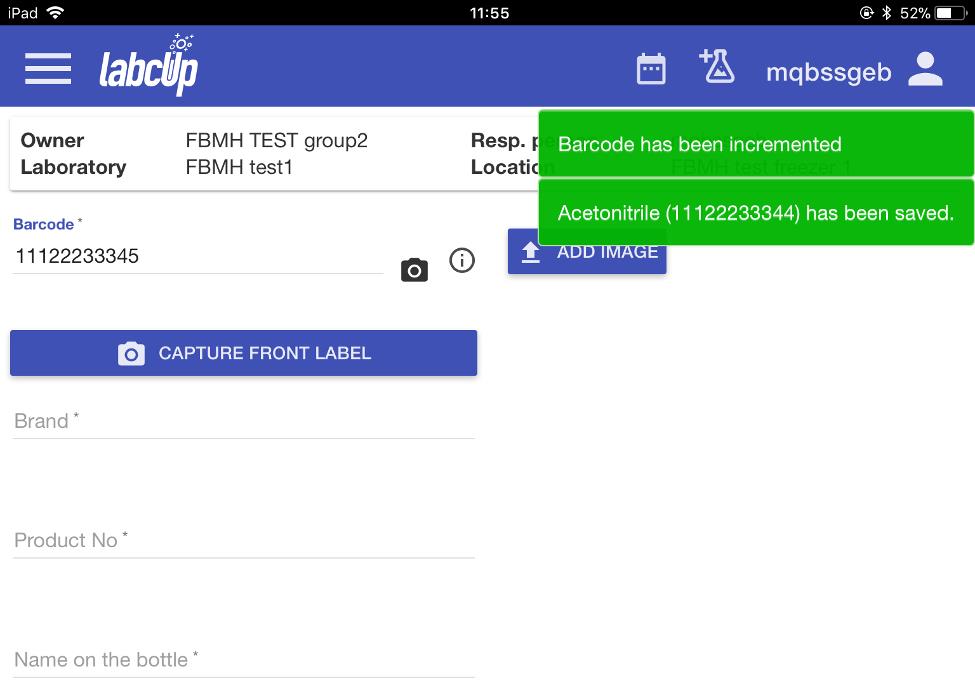
LabCup is immediately ready to add another chemical, with a notification in the top-right that the chemical’s entry has been saved.
The barcode number will automatically increase by 1, so that you do not need to scan the next one if you are working through sequential barcode numbers. If your numbers are not sequential, you can scan a new one to overwrite the suggested number.
Repeat the process until all your chemicals for this location and/or sub location are scanned.