


Flagging a chemical as available
The following walkthrough describes how to flag a chemical within your own inventory and offer it out to the research community as available for use.
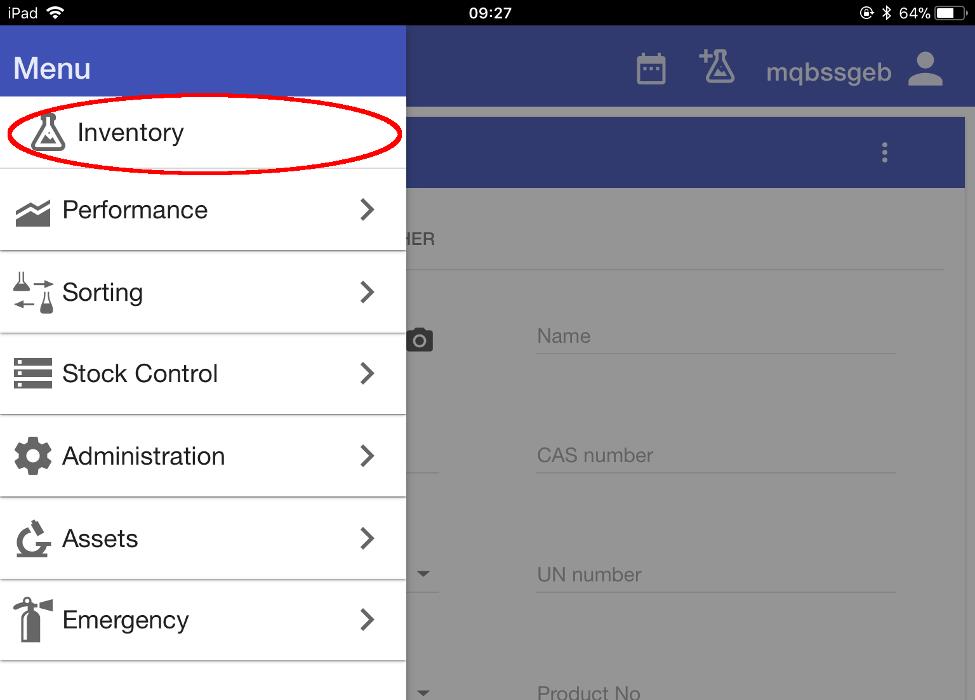
Using the menu option at the top-left of the screen, navigate to the ‘Inventory’ screen.
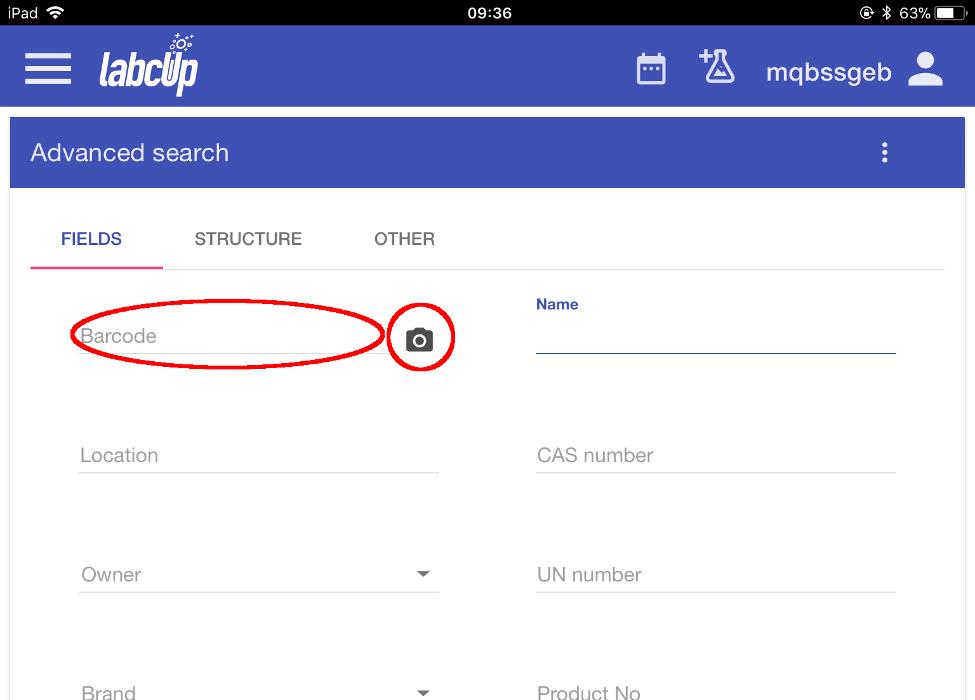
The ‘Advanced search’ screen opens.
Select either ‘Barcode’ to enter a chemical’s barcode number manually or the camera icon to scan a barcode.
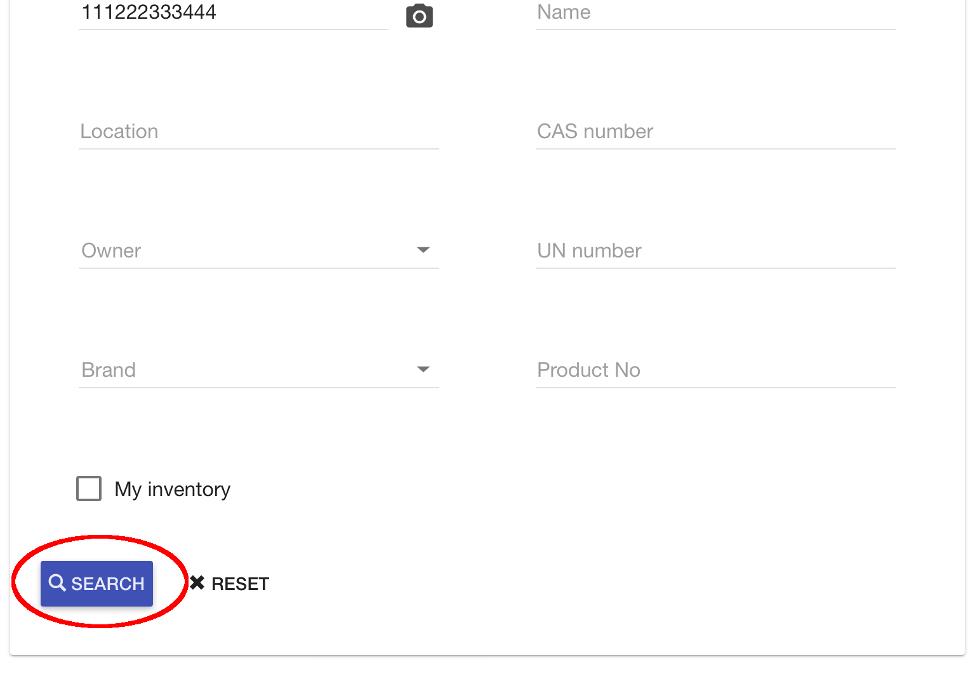
Select "SEARCH"
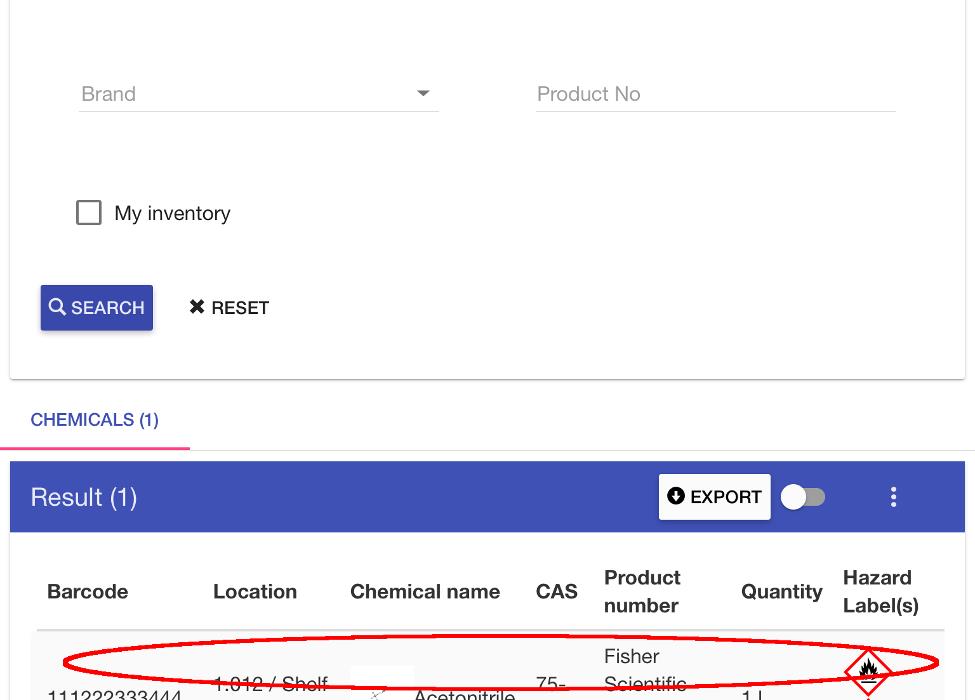
At the bottom of the screen, the specific chemical with the entered barcode is listed under Result.
Scroll down and select the entry on the list.
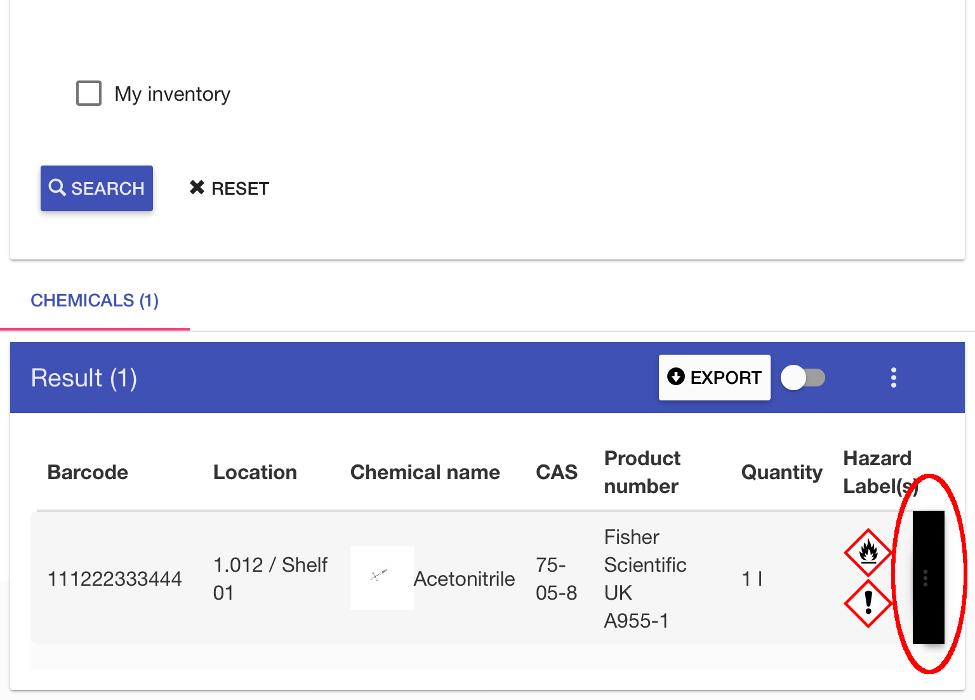
Select the three dots that appear at the right-hand end of the entry.
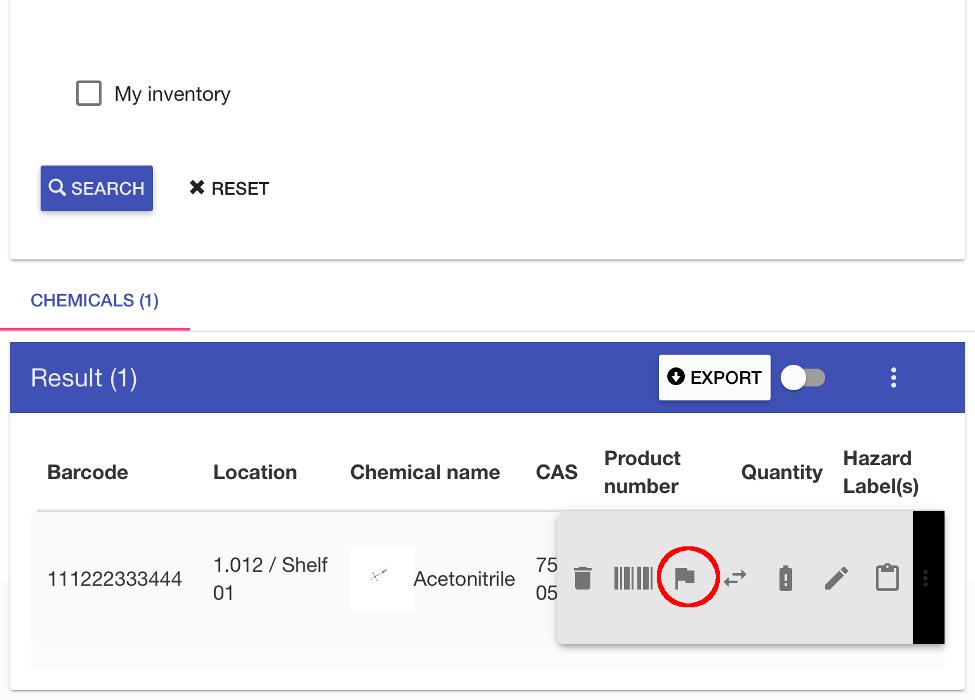
From the menu bar that appears, select the flag icon.
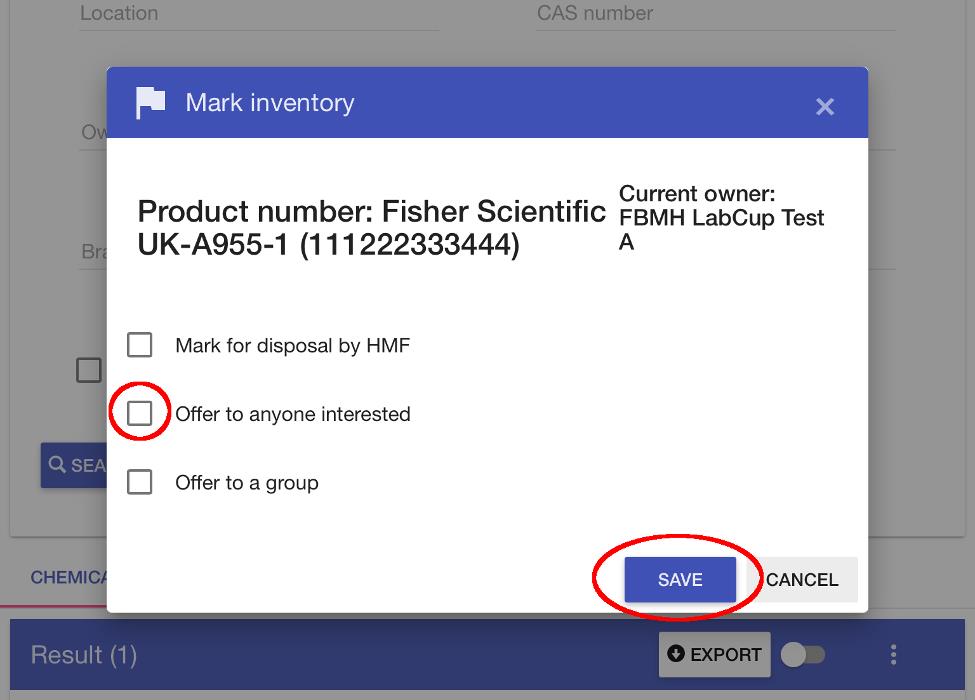
In the window that opens, select the checkbox marked ‘Offer to anyone interested’.
Then select ‘SAVE’.
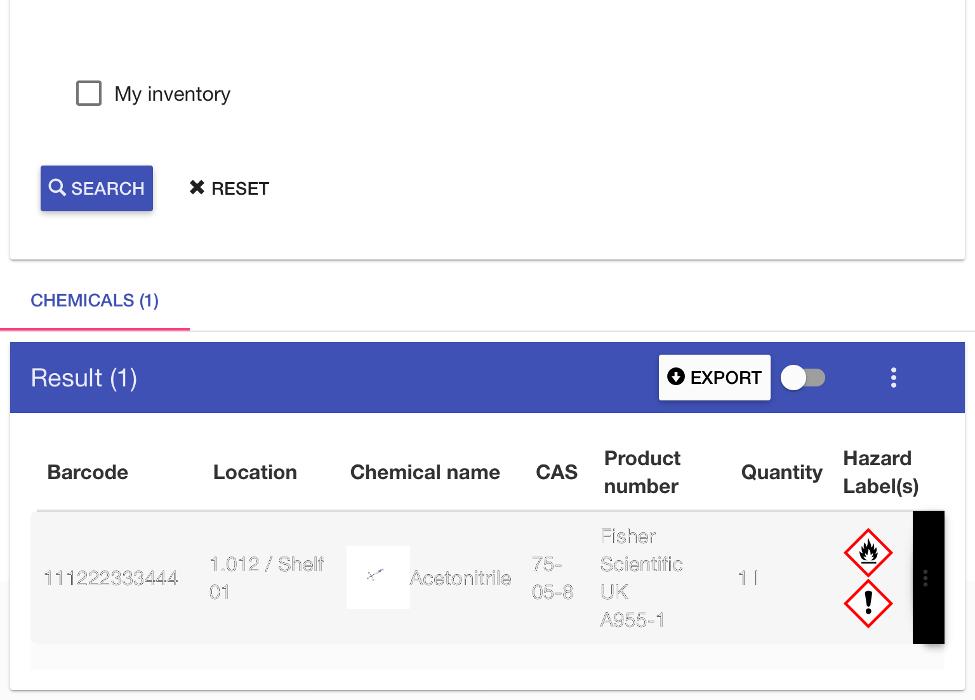
The item now appears in your inventory greyed out.
It will be visible to all users as available for transfer and remain there until another user transfers it into their group.