



Cadmus is a secure online assessment platform accessed through the University’s Central Learning Environment (Canvas). It facilitates the whole assessment cycle from assessment design through to release of grades and feedback, as well as providing insights into student engagement with an assignment over time.
Cadmus has a range of videos to help you get started, and eLearning colleagues have put together a guide too. A recording of a training session is available to watch. Multi-format assessments can also be set up on the platform, for more information on this, watch this recording.
Benefits:
- Supports assessment for learning with scaffolded assessments and authentic assessment design with templates.
- Provides a drafting facility to deliver feedback before the due date.
- Generates student activity reports for whole cohorts. 'Insights' allows tracking of an assessment in progress - providing statistics on how many students have started, finished, already been graded and so on.
- Supports students as they develop academic skills and provides detail where there is a concern about academic integrity.
What's new for Semester 1 2026/27?
Cadmus continues to evolve with features and updates that allow teachers to innovate with assessment design and formats, reinvest time into teaching, assure learning, and develop fairer and more robust feedback.
Several new capabilities are now available to support teaching and assessment:
- Group Work Pilot - Interested colleagues can apply to use Cadmus Group Assessment, closely supported by the Cadmus team.
- Oral Assessments - Design structured video response questions that enable scalable oral assessment with configurable recording conditions.
- Draft Submission Marking - Review and provide feedback on draft submissions using the same marking interface as final assessment, creating a consistent experience for formative and summative assessment.
- Double Blind Marking - Multiple markers can independently assess submissions before a moderator determines the final outcome, supporting fair and unbiased grading.
- Quick Marks - Save frequently used comments as Smart Comments, making it easier to provide consistent, high-quality feedback while reducing marking time.
Join a Semester 1 2026/27 session
- Information Sessions - Faculty of Humanities
- Information Sessions - Faculty of Science and Engineering
- Information Sessions - Faculty of Biology, Medicine and Health
- Showcase Sessions - Faculty of Humanities
- Showcase Sessions - Faculty of Science and Engineering
- Showcase Sessions - Faculty of Biology, Medicine and Health
- Assessment Workshops
- Multi-Format Assessments and Exams Workshops
Frequently Asked Questions - Academic:
What type of assessments does Cadmus support?
Cadmus can be used for a range of written assessment formats like essays, literature reviews, lab reports, tutorials and exam alternatives. The platform also allows for multi-format assessments. Cadmus templates will give you an idea of what some common assessment types look like in Cadmus, and you can even use them as a starting point for your own assignments.
How are assessments marked in Cadmus?
Cadmus works as a ‘wraparound’ to Cadmus Marker or SpeedGrader so there will be no change for the marker. SpeedGrader will be selected by default as the recommended marking tool for students and staff.
For more information, this support document explains the marking with Canvas SpeedGrader process. This article explains how to use Cadmus Marker for MFAs.
What if submissions require multiple markers?
Marking groups can be set up to make the marking and moderation process smoother. Marking groups can be created manually, or by using a CSV file of groups exported from Canvas. Sections sync from Canvas to Cadmus as marking groups.
Check out this guide on how to set up marking groups. The new marking group process for MFAs is highlighted in this article.
Can Cadmus be used for formative assessments too?
Cadmus provides a drafting facility so that students can receive feedback before the due date. Activity reports can also be used formatively to support conversations with students while they are developing their academic skills.
What student support is available on Cadmus?
On every page, there is a Cadmus Support icon at the bottom right corner providing help to students. The Cadmus Help Docs page has a designated section for students containing guides and FAQs.
The Humanities eLearning Team has produced a student user guidance document.
Frequently Asked Questions - Professional Services:
How does Cadmus integrate with the University’s Central Learning Environment (Canvas)?
Cadmus operates as a wraparound to Cadmus Marker or Speedgrader so there is no change for markers. Cadmus can be used within Canvas.
What reports can Cadmus generate?
Assessment Reports – an overview of how the cohort has engaged with an assessment over time.
Activity Reports – a detailed report on how individual students have engaged with their assessment over time, intended to support tailored conversations and support for students and to aid academic integrity investigations.
Do Excel reports from Cadmus include Student IDs?
Student IDs are available in-app on the Cadmus class list, as well as the Excel reports.
Does Cadmus notify students when they have submitted work?
Students receive a submission receipt and PDF copy of their work sent to their student email.
How does Cadmus manage late submissions?
Cadmus enables staff to efficiently filter to see students with no submission and contact them directly on the platform.
What about when support staff can't upload the document?
Unlike Turnitin where PS staff are able to upload a paper on behalf of a student, Cadmus submissions are done entirely by students. However, it’s easy to grant an extension. Find the student in the ‘Class progress’ section, either select them with the check box on the left or click the ‘More’ icon on the right, then click ’Set extension’. This will allow you to grant an extension for just that one student giving them the extra time they need to submit their Cadmus assessment themselves. (You can select multiple students with the check boxes to apply the same extension to them all.)
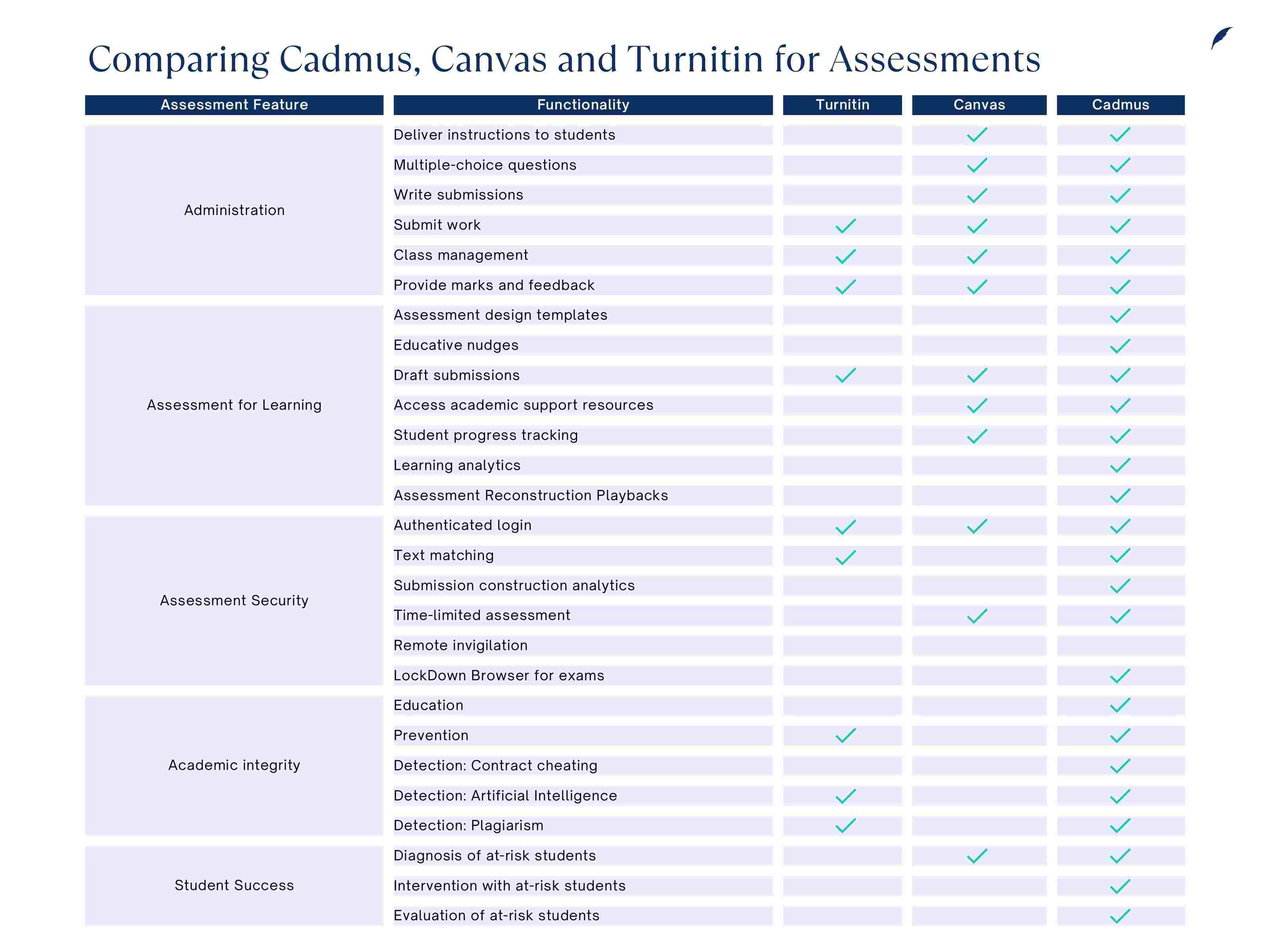
Some key differences between Cadmus and Canvas:
- Canvas has been designed to deliver learning experiences and content in a similar way to Blackboard, whereas Cadmus has been specifically designed to deliver assessment experiences.
- With regards to assessments, Canvas is designed for educators to post assessment instructions and for students to submit their assessments. Cadmus, however, has been designed to streamline the entire assessment process, from designing assessments to releasing grades and feedback. It also provides valuable insights into student engagement throughout the duration of an assignment.
Cadmus has worked with a number of institutions as they have transitioned to a new LMS and using Cadmus has actually smoothed the transition for students. This is because the assessment experience remains exactly the same across both systems and students feel confident and comfortable in an assessment environment that is already familiar to them.
Previous workshop recordings
To introduce colleagues to the features and functionality of the platform, the Cadmus team facilitated two workshops, each with a different focus. The recordings can be viewed below:
Useful links
Contact and Support
The Cadmus team is available to support you as you prepare your upcoming assessments. If you’d like help setting up your assessment in Cadmus, please contact support@cadmus.io and a team member will be happy to guide you through the process.
For more information about Cadmus or if you have any questions, please contact the Teaching Excellence team at teaching.learning@manchester.ac.uk
For eLearning queries, please contact your local team: