


.png)
How to use Canvas
This page will run through the basics of using Canvas for the purpose of accessing colleague development, whether in the form of eLearning or face-to-face sessions.
Enrolling in a course
Before you can access the content in a course and choose your workshop dates, you must first enrol on the course via https://mydevelopment.manchester.ac.uk/. This is a catalogue of all development opportunities on offer. Use the search bar to search for keywords that appear in course names. You can also filter by Category to see courses in a general area that you are interested in.
Once you've chosen a course, click the Enrol button and confirm your enrolment on the next screen. This course will now appear in your Canvas dashboard, which you can access at any time by logging in to Canvas.
Choosing a workshop
Now you are enrolled, you can choose a workshop date. First, you need to enter the Canvas space for the course, which you can access through your enrolment confirmation page or via your Canvas dashboard.
- Head to the Groups page by clicking the Select your workshop link on the Home page
- Choose an available date from the list and click Join next to it.
Changing your booking
If you would like to change your booking, head back to the Groups page (step 1 above) and unassign yourself from this group by selecting Leave. Upon doing so, you can join another scheduled workshop. Your re-assigning confirmation will take up to 5 minutes to appear on the modules page.
Dropping a course
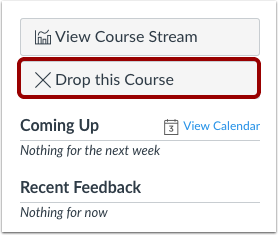
If you no longer wish to take a course that you have self-enrolled on, you can Drop the course. This will remove it from your Canvas dashboard.
To do so, open the course, click the Drop this course button on the right of the screen, then confirm your unenrolment.
Note: You can only drop a self-enrolled Canvas course while it is in progress (between the course start date and end date). Also, if you did not enrol in the course using the given URL or join code, meaning you were manually or automatically added to the course, you will have to ask your instructor or institution to be removed from the course.
Syncing your Canvas calendar to your Outlook calendar
All sessions you book onto will appear in your Canvas calendar but will not transfer automatically to your personal Outlook calendar. Fortunately, there is a quick, 1-minute fix which will allow you to view your Canvas calendar from within Outlook.
Watch the video below:
Video transcript
I’m going to show you how to sync up your Canvas calendar to your Outlook calendar. First, open Canvas by typing https://canvas.manchester.ac.uk into your browser’s search bar. This should either prompt you to log in with your single sign on details, or take you to your Canvas dashboard directly if you have signed in recently. In the menu on the left of your screen, click the ‘Calendar’ button to open up your Canvas calendar. This is where anything you have signed up to in Canvas that has a due date will appear. On the right of your screen, click the ‘Calendar feed’ button. Highlight the URL that pops up and copy it.
Now open your Outlook calendar. This process works best with Outlook (new), so open this version. You can revert back to a different version of Outlook once complete if you prefer it. Click on the ‘Add calendar’ button. In the window that pops up, click on ‘Subscribe from web’. Paste the url you copied into the text field using ctrl + v. Now you can choose a display name, colour and icon for your Canvas calendar. Click ‘import’.
Now, your Canvas calendar will be available from within Outlook, allowing you to easily track sessions you’ve booked onto.
Written instructions
- Open your Canvas calendar
- Click Calendar feed
- Copy the URL that appears
- Open Outlook (new)
- Choose add calendar in Outlook,
- Select Subscribe from web
- Paste the Canvas calendar feed URL you copied into the text field
- Now click import and your Canvas bookings will be visible in your Outlook calendar
Certificates
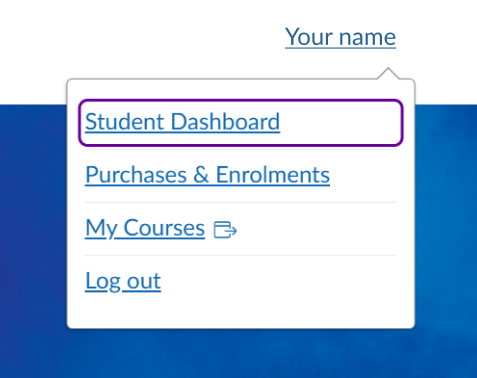
Most courses will provide you with a certificate upon completion. These can be viewed from your Student Dashboard in MyDevelopment.
To access this yourself, open MyDevelopment, click your name in the top right corner, click Student Dashboard, then click Completed.
Here, you will see a list of courses that you have completed. Under each course that has a certificate attached, you can click the View or Download buttons to access your certificate. Each certificate will tell you:
- When you completed the course
- When your certificate will expire (if applicable)
This expiration date is helpful to keep track of for any courses that are mandatory for your role, such as:
- Recruiting colleagues at Manchester
- the Essentials courses
- any role-specific Health and Safety courses